The full dialer. Installed to your home screen.
DialerSeat runs as a complete Progressive Web App (PWA) on mobile: the same terminal, the same analytics, the same teams tools you get on desktop, installed to your phone in under a minute. No App Store, no separate download, no stripped-down “mobile version.”
We strongly recommend installing the PWA rather than using DialerSeat in a regular browser tab if you plan to dial from mobile at all. Installed mode runs full-screen with no browser address bar eating into your screen space, launches instantly from your home screen instead of requiring you to navigate back to the site, and keeps your session persistent instead of getting reloaded every time your browser app gets backgrounded by iOS or Android. If you're going to run a shift from your phone, install it first, it takes under a minute and the instructions are right below.
▸ SEE IT RUNNING
Real screenshots, standard Pro plan, no white-labeling, this is exactly what every DialerSeat account gets on mobile.
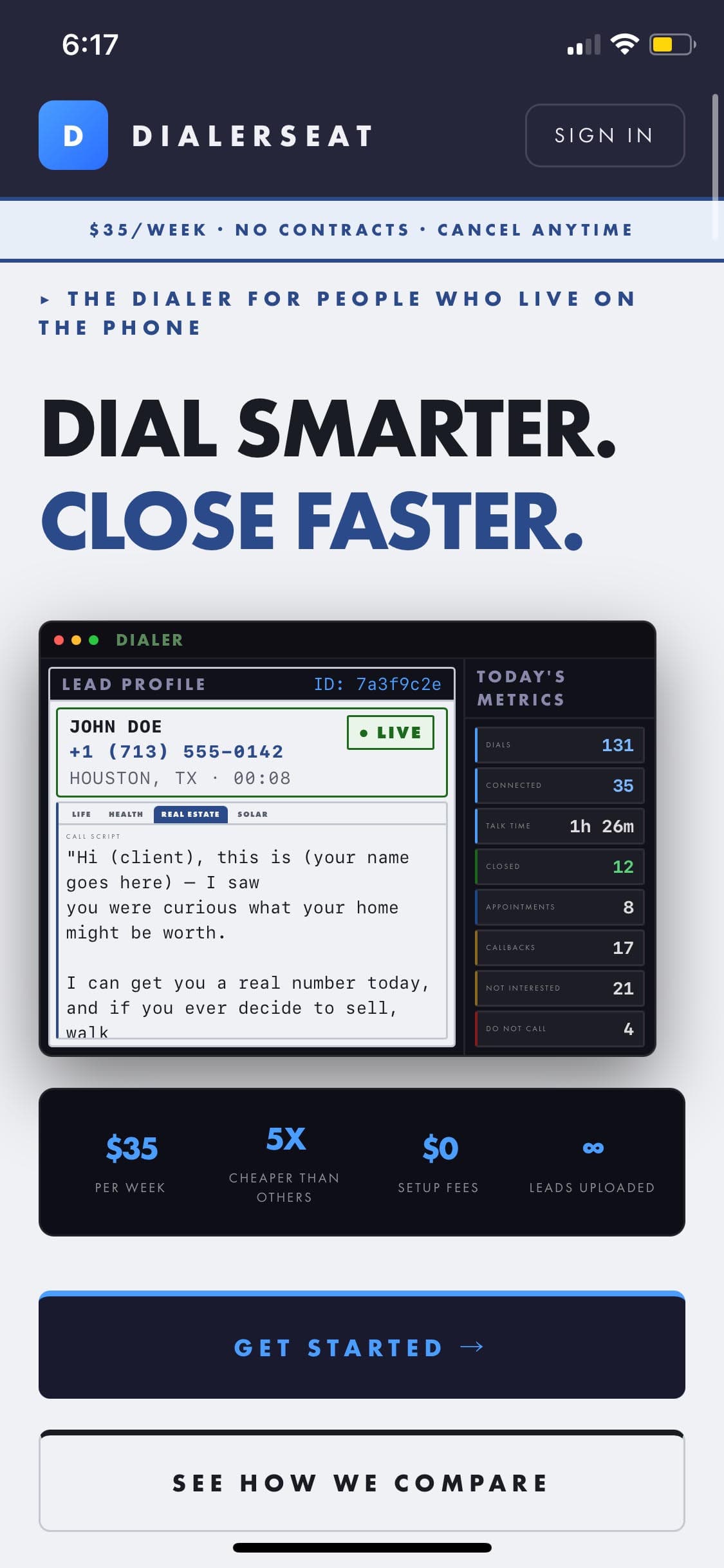
The landing page on mobile, this is what a new visitor sees before ever signing up. Fully responsive, no separate mobile site.
▸ HOW TO INSTALL IT
“Installing” a PWA doesn't mean an app store download, it means telling your phone's browser to save a home-screen shortcut that opens full-screen, with no address bar. Here's exactly how, on both platforms.
- Open
dialerseat.comin Safari (this only works in Safari, not Chrome, on iOS: that's an Apple restriction, not ours). - Sign in to your account.
- Tap the Share icon in the bottom toolbar (the square with an arrow pointing up).
- Scroll down and tap “Add to Home Screen.”
- Tap “Add” in the top-right corner.
- The DialerSeat icon now sits on your home screen: tap it any time to launch full-screen, already signed in.
- Open
dialerseat.comin Chrome. - Sign in to your account.
- Tap the three-dot menu in the top-right corner.
- Tap “Install app” or “Add to Home screen” (wording varies slightly by Chrome version).
- Confirm by tapping “Install.”
- The DialerSeat icon now sits on your home screen and in your app drawer, launching full-screen like any other installed app.
Once installed, updates happen automatically in the background the same way the website updates. There's nothing to manually update and no separate release you're waiting on.
▸ WHAT'S ACTUALLY THERE ON MOBILE
Nothing is held back for the smaller screen. Everything a Pro-plan account gets on desktop is present and fully functional on mobile:
- Full dialer terminal: all four dialer modes, manual dial pad, live campaign selection, lead profile view
- Analytics overview: the same call volume, conversion rate, disposition breakdown, and campaign performance panels as desktop
- Campaigns, Recordings, and Leads: browse, manage, and review from your phone exactly like you would at a desk
- Teams: for Manager+ accounts, the same team management tools carry over too; see white-label on mobile if you're running a branded account
- Settings: account and campaign configuration, unchanged from desktop
The one place mobile intentionally trades convenience for practicality is dense side-by-side views, the desktop app's multi-window layout (analytics and teams open next to each other) doesn't translate to a phone screen, so those stay single-view on mobile and swap via the sidebar instead.
One honest note: like any PWA, this isn't a listing in the App Store or Play Store, so there's no storefront search visibility and iOS in particular restricts installation to Safari specifically (Chrome and other iOS browsers can't trigger the install prompt, that's an Apple platform rule, not a DialerSeat limitation). For actually running your dialer day to day, none of that changes the experience once it's installed.
$35/week. No contract. Cancel any time.
Sign up, sign in on your phone's browser, and install it to your home screen in the next sixty seconds.
GET STARTED →